TABLE OF CONTENTS
Canon Printer
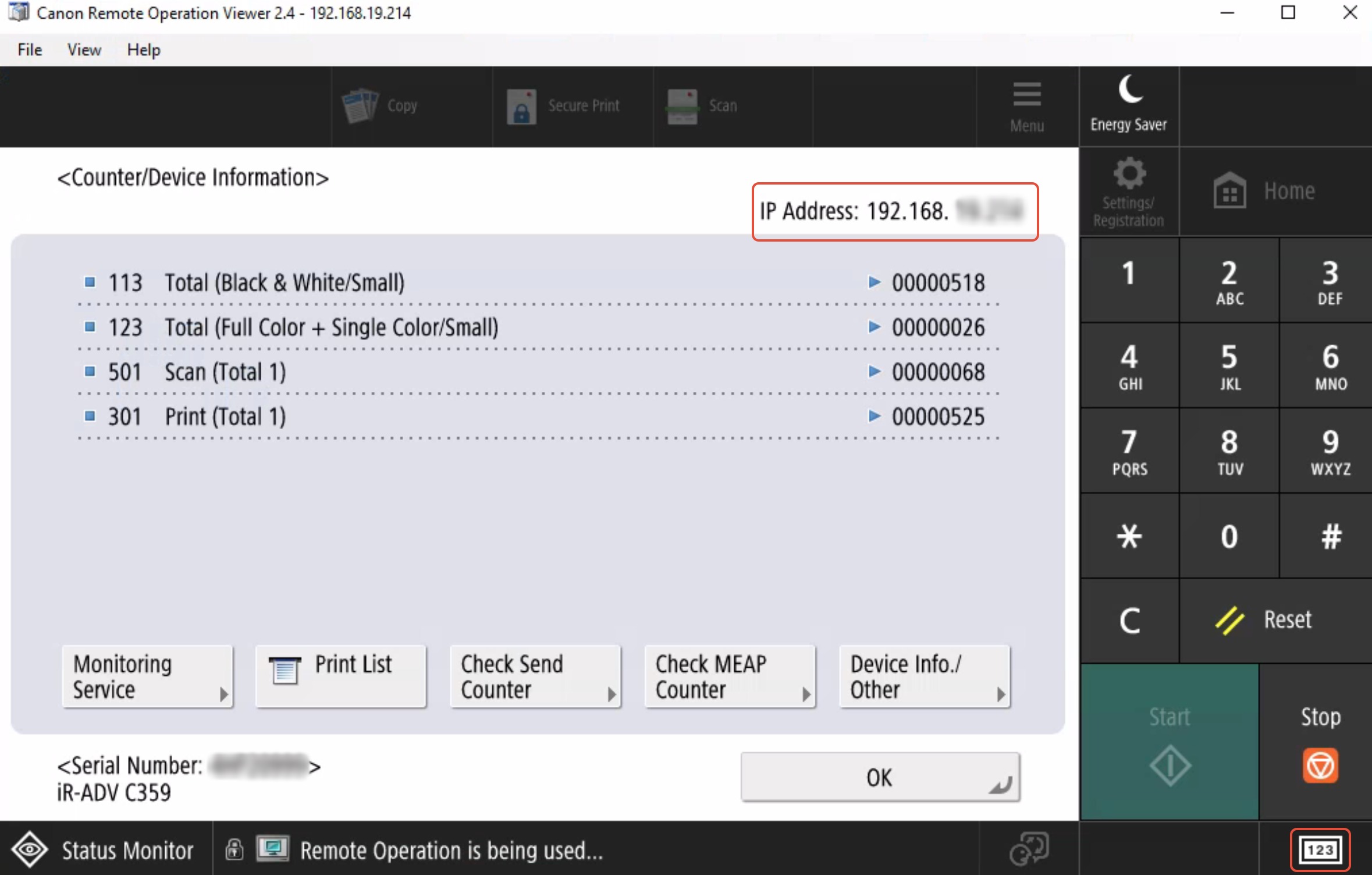
1. Click on the 123 rectangle button bottom right of the screen
 IP Address is displayed Top Right of the screen
HP Printer
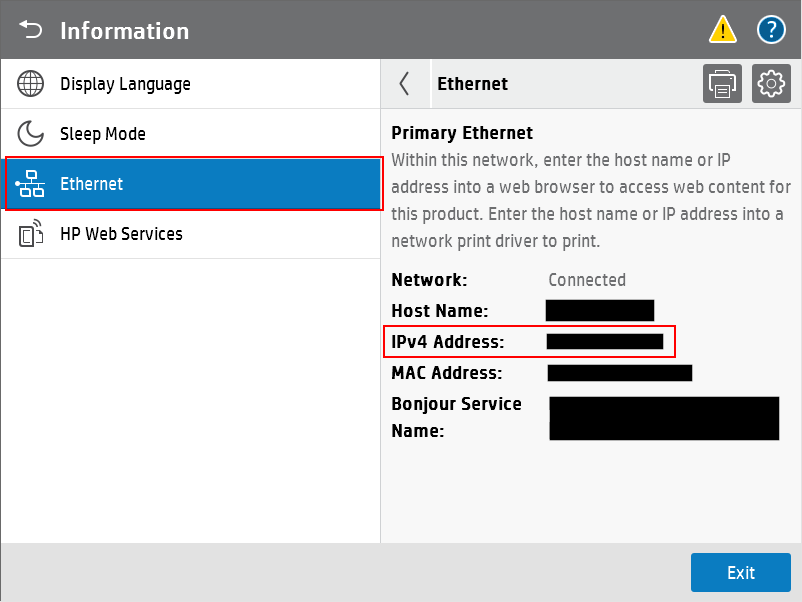
1. Find and press the blue information icon in the top-right of the device’s screen.

2. In the list on the left, press on “Ethernet”.
3. You should see the IP address displayed on the right, next to “IPv4 Address”.
Ricoh Printer
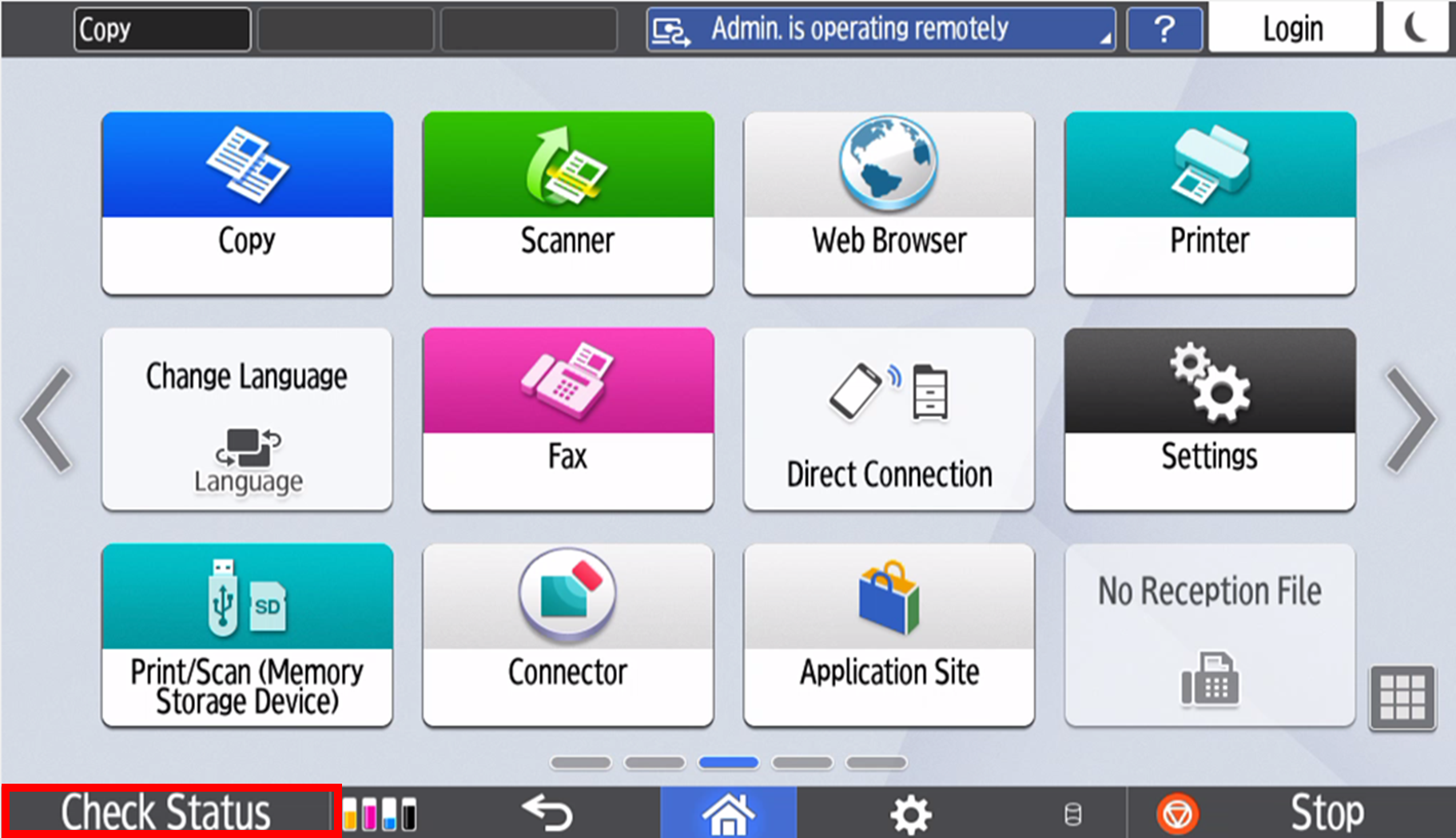
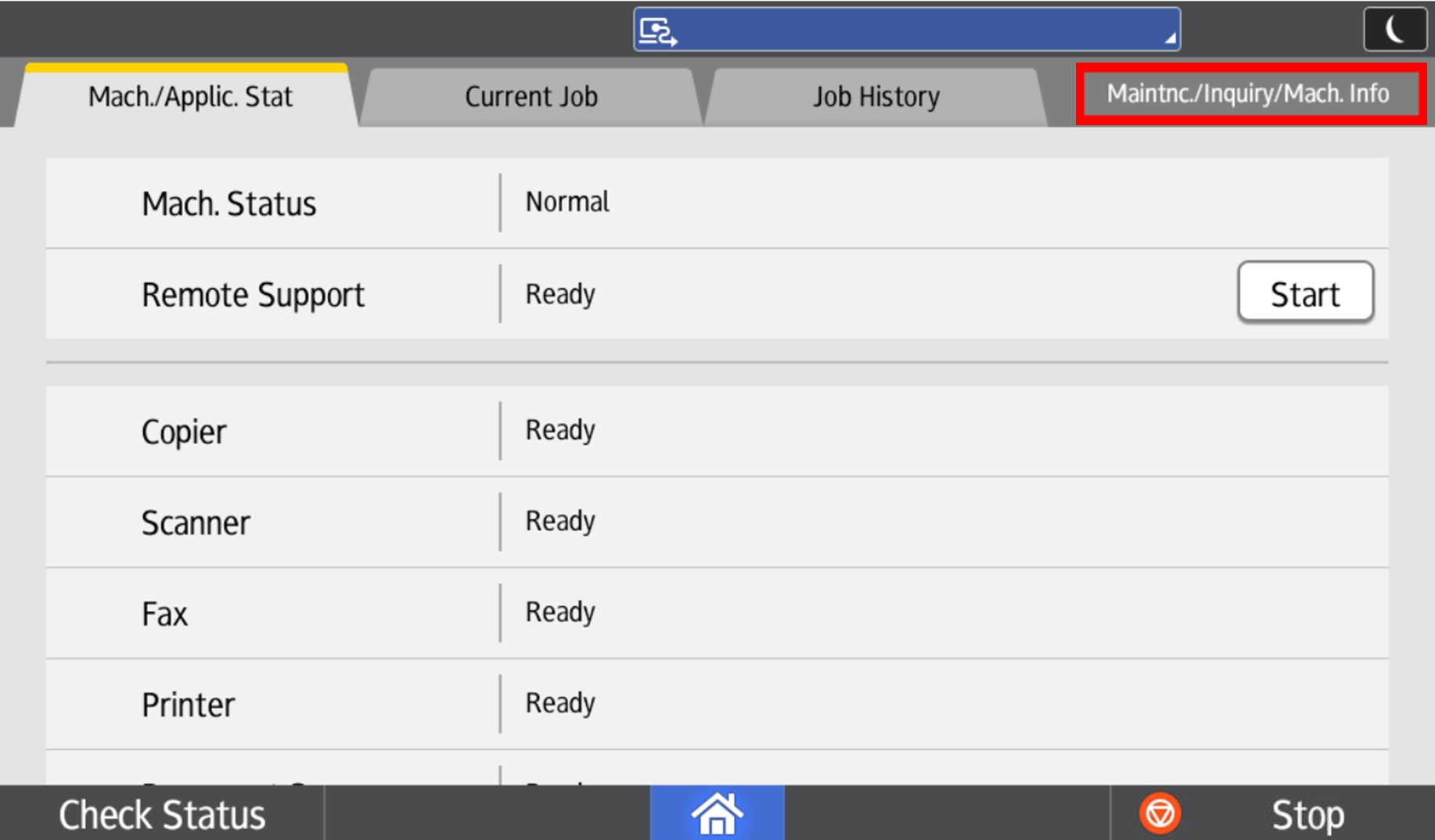
1. Press Check Status
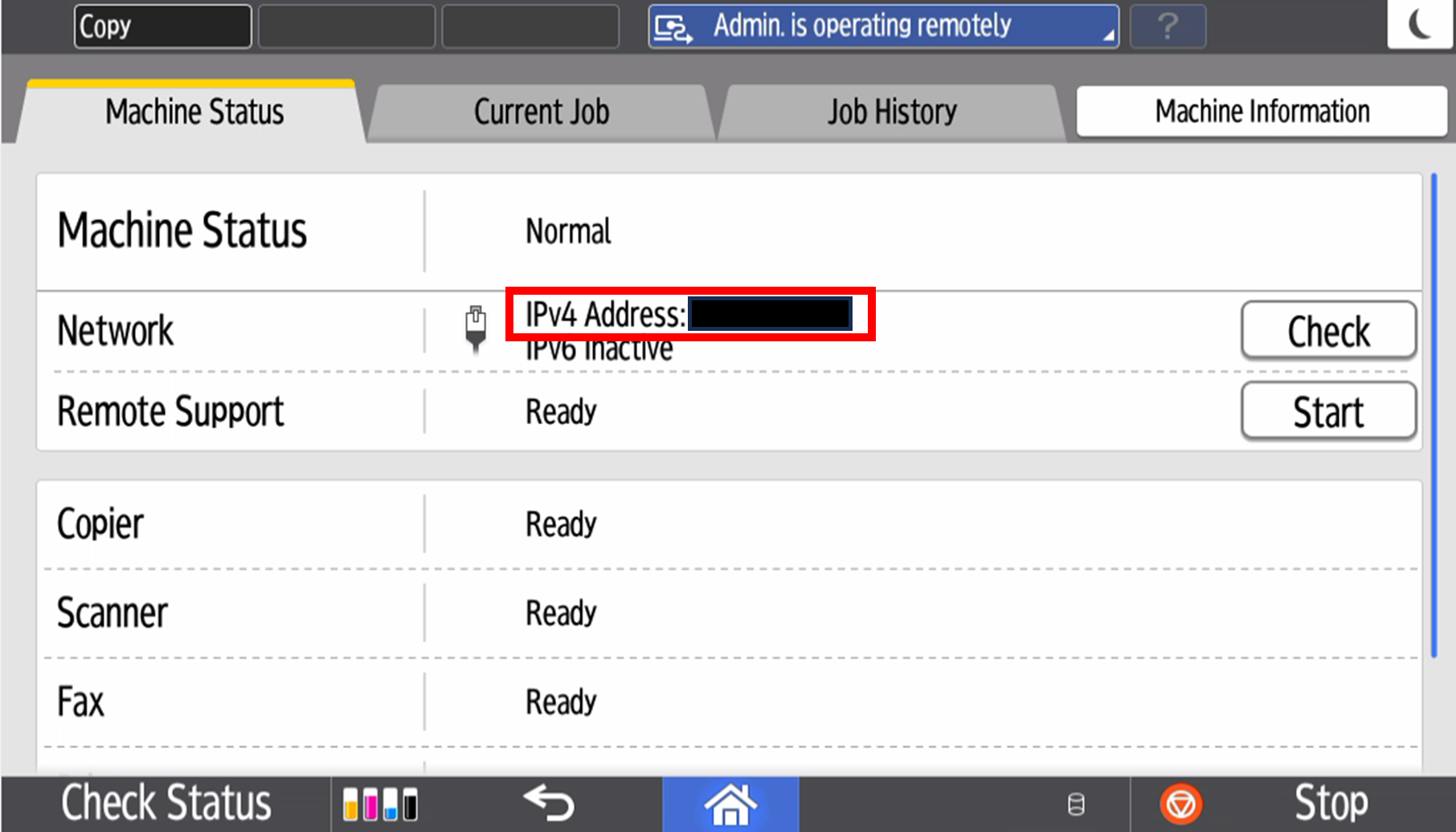
2. IP address is shown as IPv4 Address
3. If IP address is not shown click on Maintnc./Inquiry/Mach.Info
Was this article helpful?
That’s Great!
Thank you for your feedback
Sorry! We couldn't be helpful
Thank you for your feedback
Feedback sent
We appreciate your effort and will try to fix the article