Remote monitoring · EKM Insight DCA
How do I install an EKM Insight DCA licence?
Vision sends the DCA licence as a .lic file. Installing it from the console registers the DCA against your account and sets the licensed device count and expiry date.
Applies to
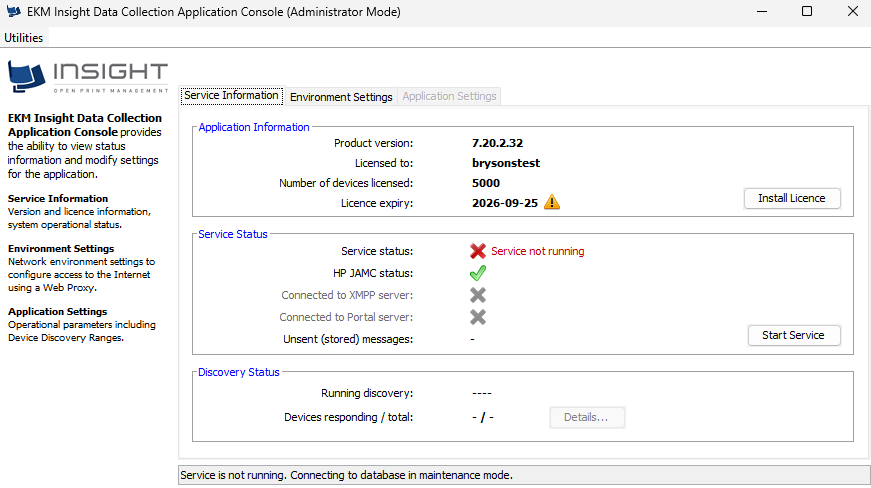
EKM Insight Data Collection Application (DCA) 7.x. Use this on a new install, or when the licence has expired or is about to expire (a warning triangle shows next to Licence expiry).
Before you start
Vision emails the licence file, named in the format vision_<account>.lic. Save it to a folder on the PC or server running the DCA, for example C:\Temp. If you have not received it, contact Vision Technical Support.
Steps
Open the console as Administrator. On the PC or server running the DCA, click Start and type EKM Insight DCA Console. Select EKM Insight DCA Console (Administrator Mode) from the Apps results and click Yes at the Windows User Account Control prompt.

Click Install Licence. On the Service Information tab, click Install Licence in the Application Information section.
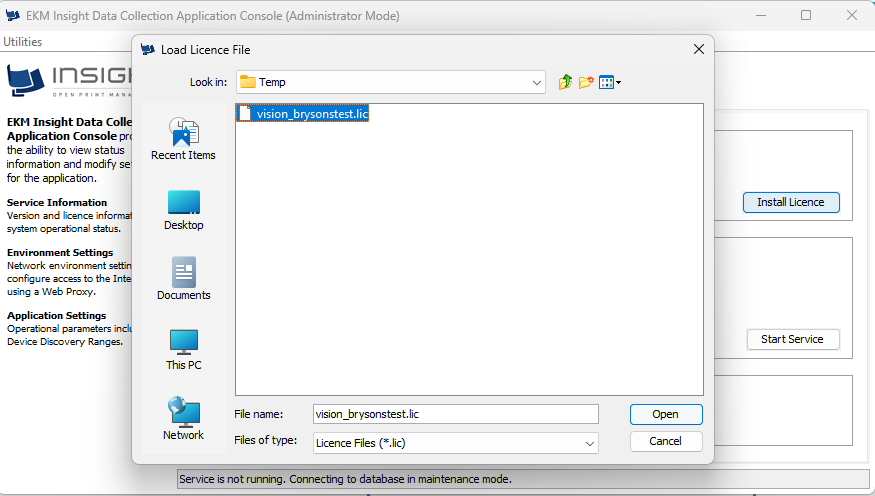
Select the licence file. In the Load Licence File window, browse to the folder you saved the file in, select the .lic file sent by Vision and click Open.
Check the licence details. Back on Service Information, confirm Licensed to shows your account name, Number of devices licensed is correct and Licence expiry shows the new date with no warning triangle.
Start the service. If Service status shows Service not running, click Start Service and confirm the status changes to running.
Note: If the licence details do not update, confirm you selected the latest file from Vision and not an older copy. If the network uses a proxy, set it up first under Environment Settings. See How do I open the EKM Insight DCA Console and enter proxy settings?
Was this article helpful?
That’s Great!
Thank you for your feedback
Sorry! We couldn't be helpful
Thank you for your feedback
Feedback sent
We appreciate your effort and will try to fix the article