Remote monitoring · EKM Insight DCA
How do I open the EKM Insight DCA Console and enter proxy settings?
Where the customer network reaches the internet through a web proxy or firewall, the DCA needs the proxy details before it can contact the licence server and the Vision portal.
Applies to
EKM Insight Data Collection Application (DCA) 7.x installed on a customer PC or server, on networks that route internet traffic through a proxy.
Before you start
Get the proxy server address, port, proxy type and, where required, a username and password from the customer's IT team. If the network has no proxy, leave both tabs on No Proxy.
Steps
Open the console as Administrator. On the PC or server running the DCA, click Start and type EKM Insight DCA Console. Select EKM Insight DCA Console (Administrator Mode) from the Apps results and click Yes at the Windows User Account Control prompt.

Check the service status. The console opens on the Service Information tab. If Service status shows Service not running, the status bar reads Connecting to database in maintenance mode and the Application Settings tab is unavailable. Proxy settings can still be entered in this state.
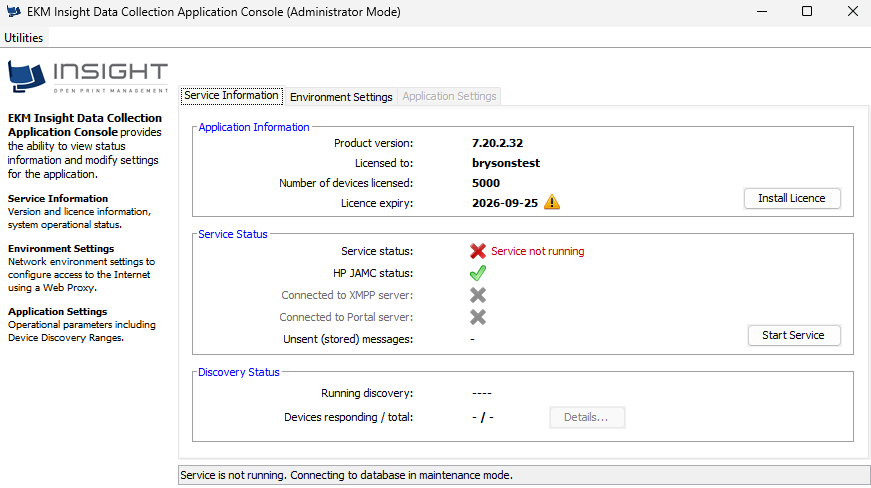
Enter the HTTP proxy. Click Environment Settings > HTTP Proxy. This proxy is used for the internet and licence server connection. Select Manual Proxy Configuration, choose the Proxy type, then enter the Proxy server and Port. If the proxy requires authentication, enter the User name and Password.
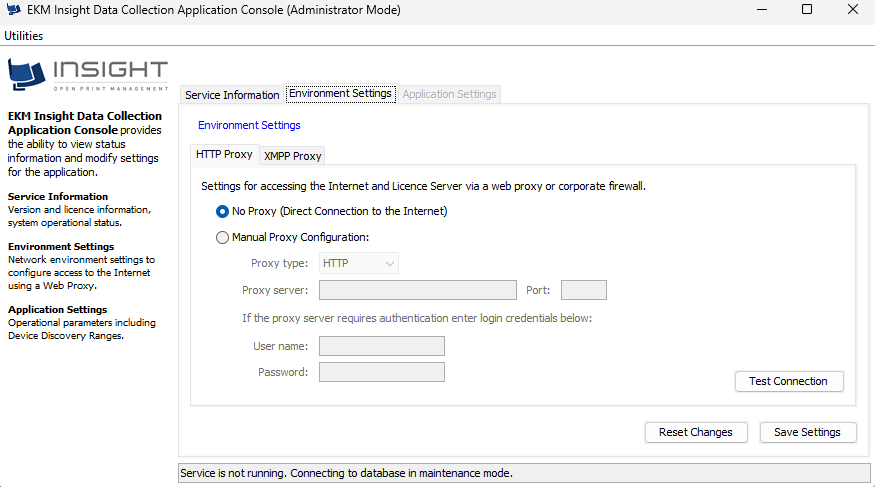
Test and save the HTTP proxy. Click Test Connection and confirm it succeeds, then click Save Settings.
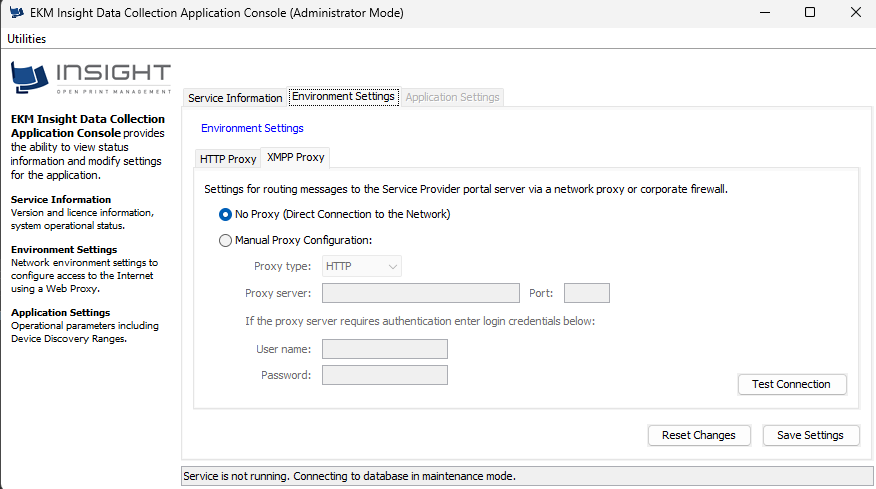
Enter the XMPP proxy. Click the XMPP Proxy tab. This proxy is used for messages to the Service Provider portal server. Select Manual Proxy Configuration and enter the same details as step 3, unless the customer's IT team has given a separate proxy for this traffic. Click Test Connection, then Save Settings.
Start the service. Return to Service Information and click Start Service. Confirm Service status shows running and that Connected to XMPP server and Connected to Portal server both show a green tick.
Note: If Test Connection fails, the proxy is blocking the DCA. Ask the customer's IT team to allow the DCA PC outbound access through the proxy, or to add it to the proxy bypass list. Reset Changes reverts any unsaved edits.
Was this article helpful?
That’s Great!
Thank you for your feedback
Sorry! We couldn't be helpful
Thank you for your feedback
Feedback sent
We appreciate your effort and will try to fix the article