Remote monitoring · Canon eMaintenance
How do I register a Canon device for eMaintenance?
Register the device to Vision’s tenant from the Monitoring Service screen, confirm the communication test passes, then pass the details on.
Before you start
You’ll need the following at the device:
| Device activation key | ****-**** |
| Tenant to confirm | Vision Ltd (Tenant ID *****) |
| Service mode access | Only if the device asks for a communication test first (step 3) |
| For the hand-off | Device serial number and customer name |
Register the device
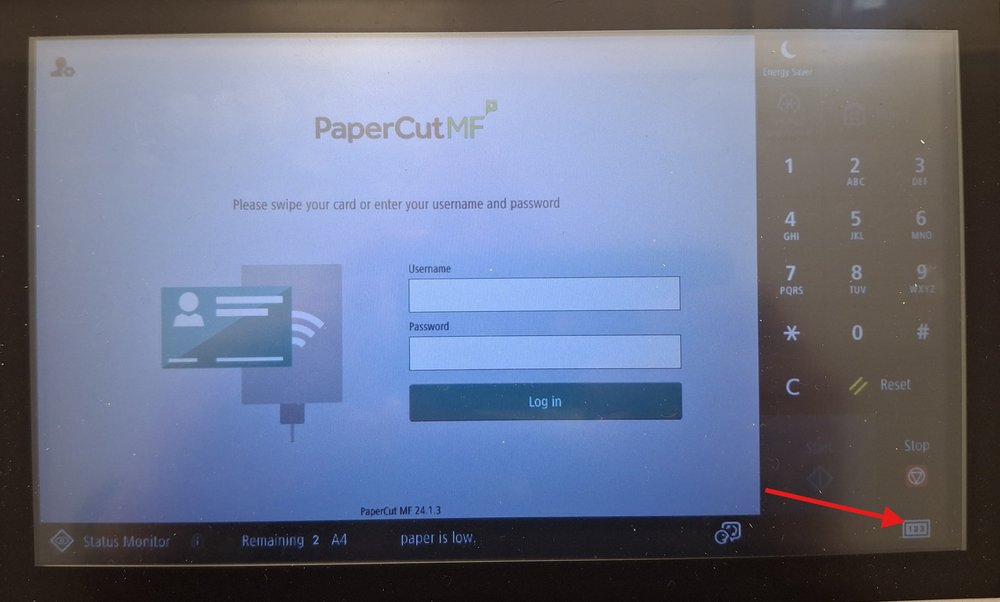
Open the counter screen. Press the 123 (Counter/Device Information) key. You can do this from the login screen.
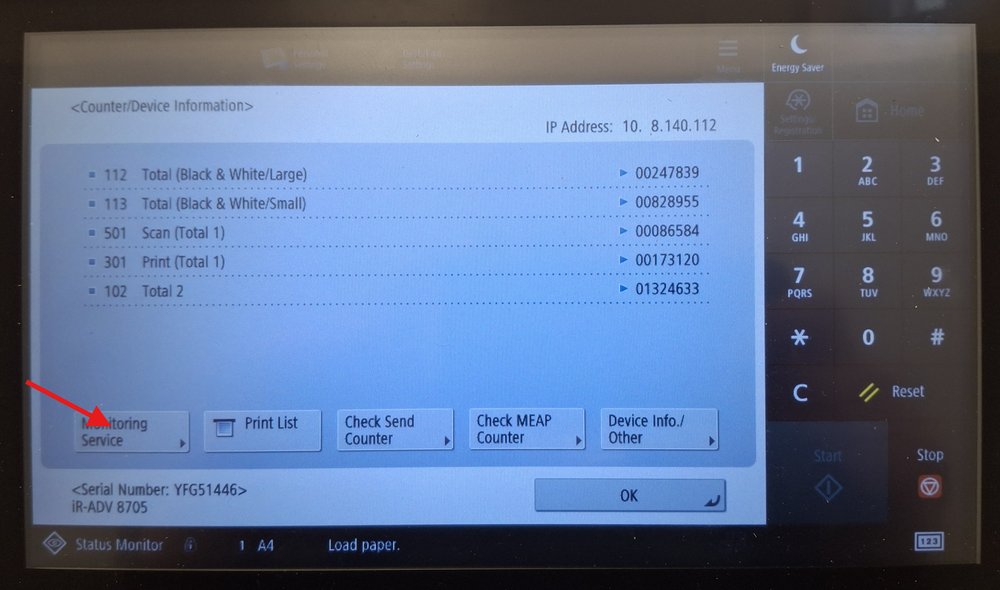
Open Monitoring Service. On the Counter/Device Information screen, press Monitoring Service.
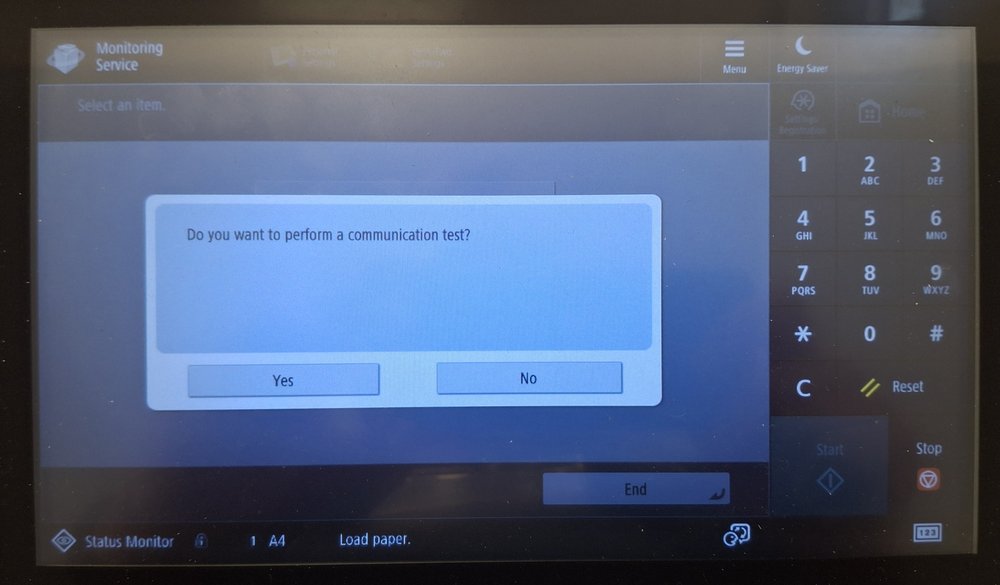
If asked to run a communication test, enable RMS-SW first. If the device shows Do you want to perform a communication test? instead of the Monitoring Service menu, RMS-SW is switched off. Enter service mode, set RMS-SW to 1, exit service mode and start again from step 1. If you see the menu in step 4, skip this step.
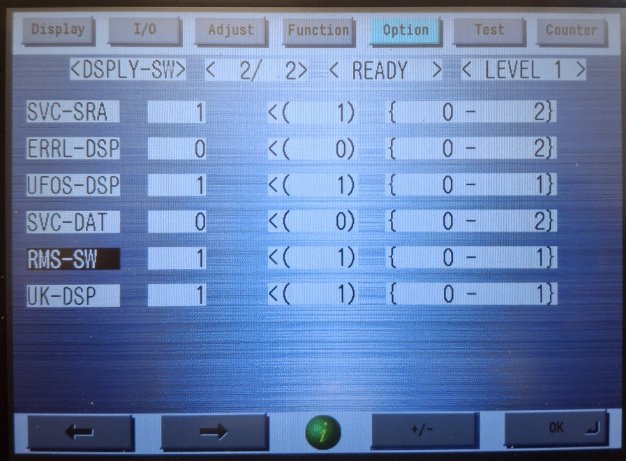
Note: RMS-SW is on the Option tab under DSPLY-SW.
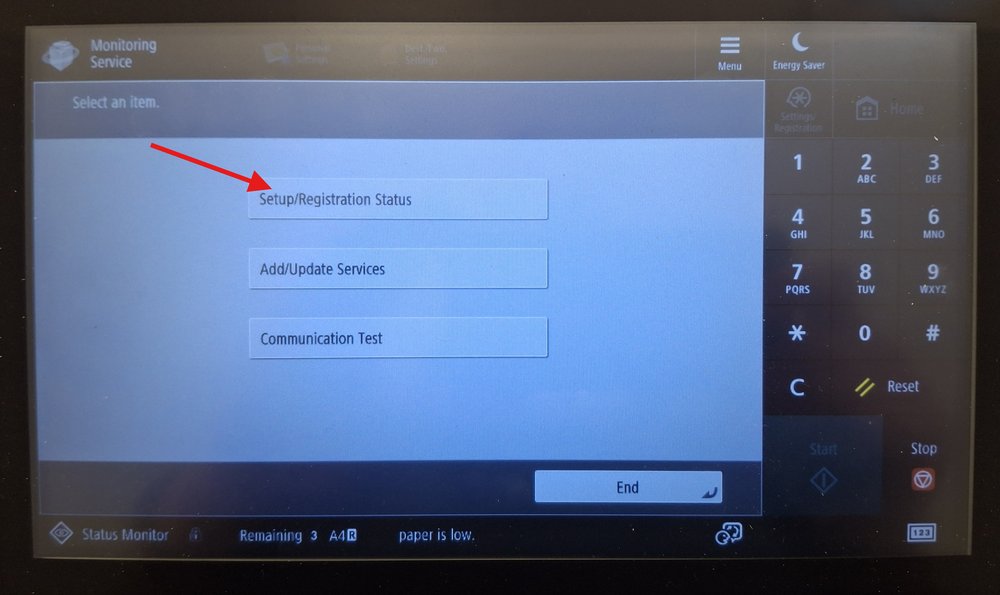
Open Setup/Registration Status. This is the correct Monitoring Service screen. Press Setup/Registration Status.
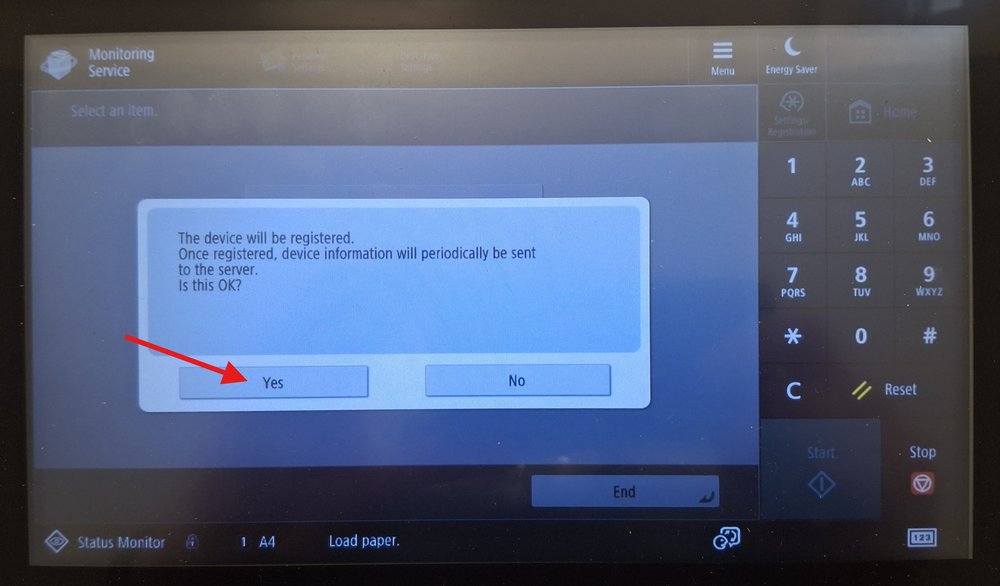
Start the registration. When asked whether the device will be registered, press Yes.
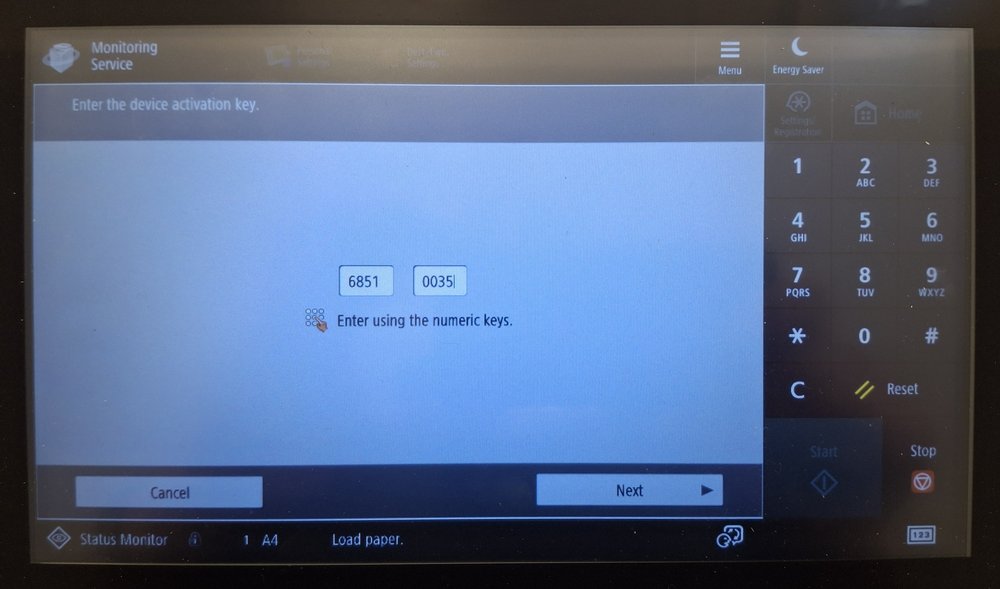
Enter the activation key. Enter ****-****(Will be supplied by Vision) using the numeric keys and press Next.
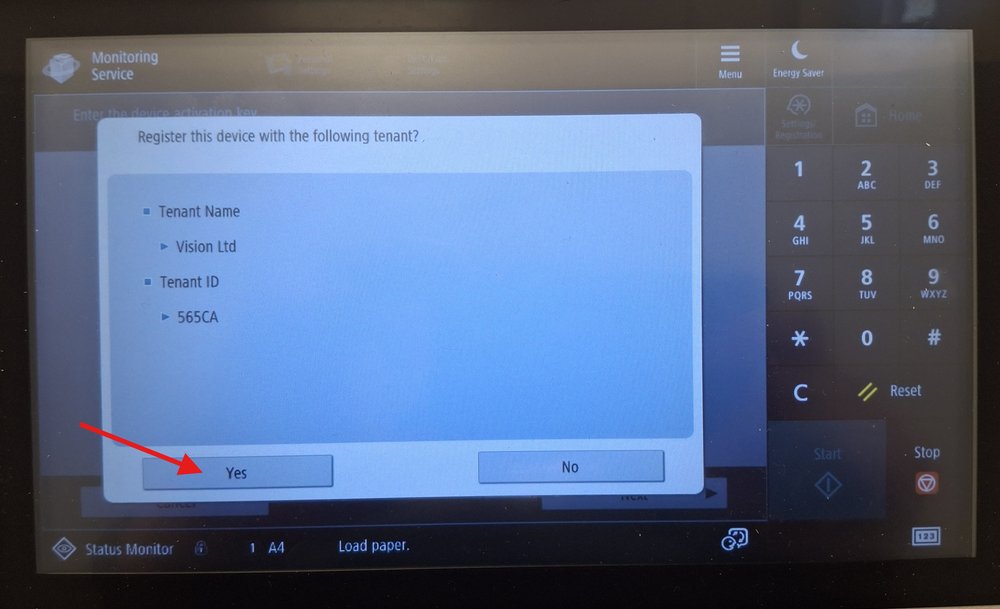
Confirm the tenant. Check the tenant shows Vision Ltd, Tenant ID*****, and press Yes.
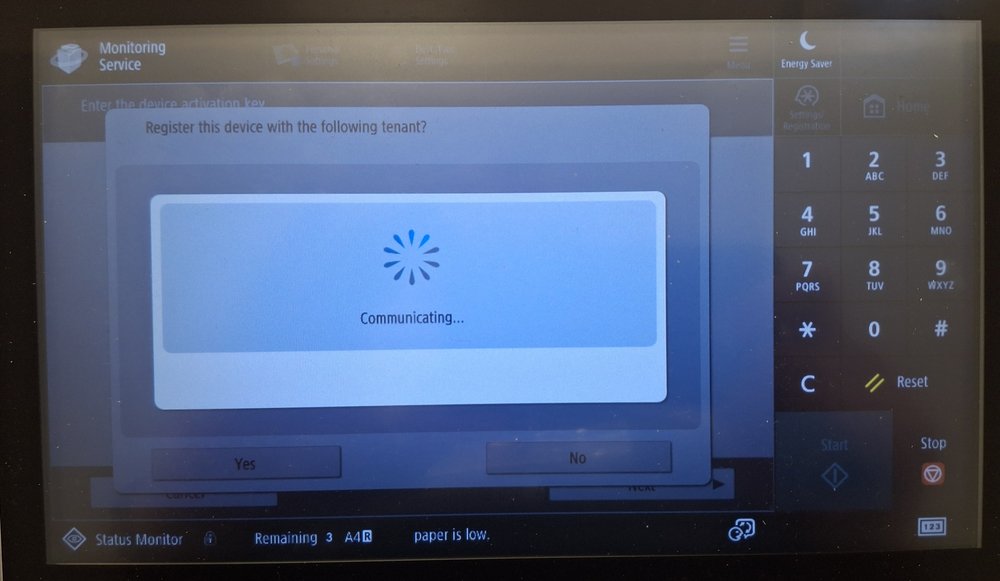
Wait for the device to communicate. The device stays on the Communicating screen for roughly 30 to 60 seconds. Don’t press anything.
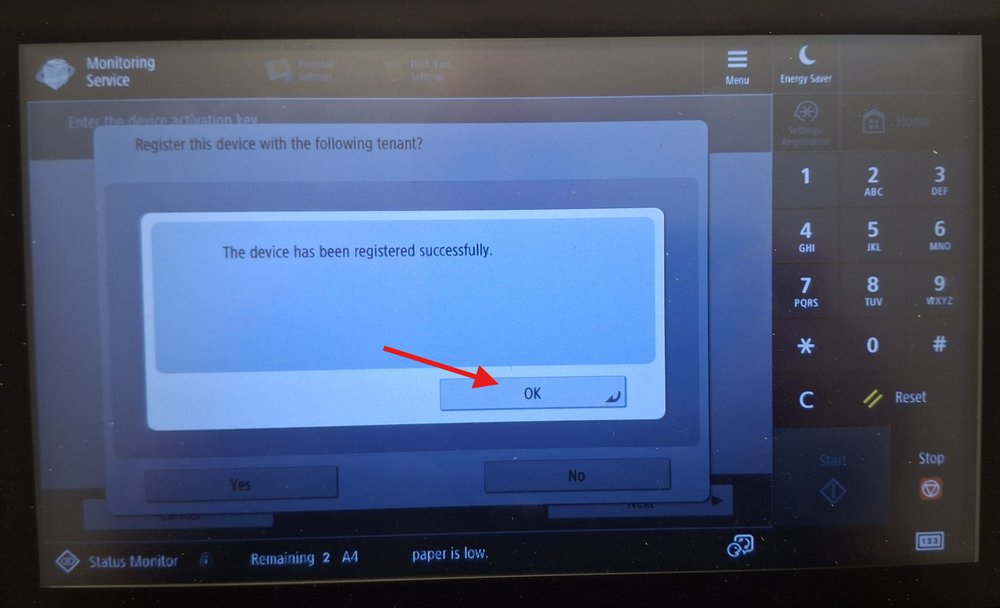
Close the confirmation. When The device has been registered successfully appears, press OK to go to the registration status screen.
Check the result
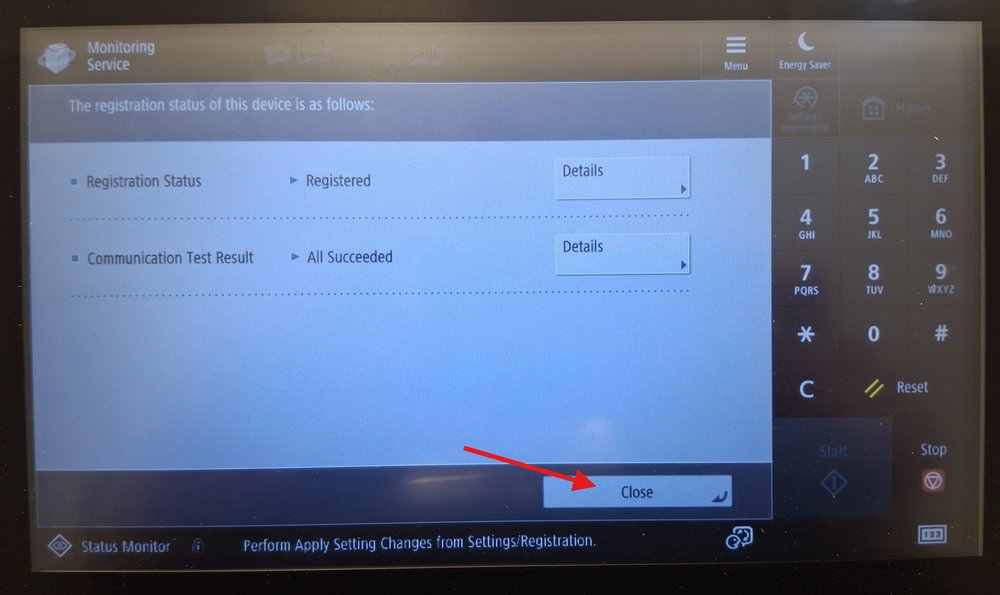
Check the registration status. Registration Status should show Registered and Communication Test Result should show All Succeeded. If both are correct, press Close and exit Monitoring Service.
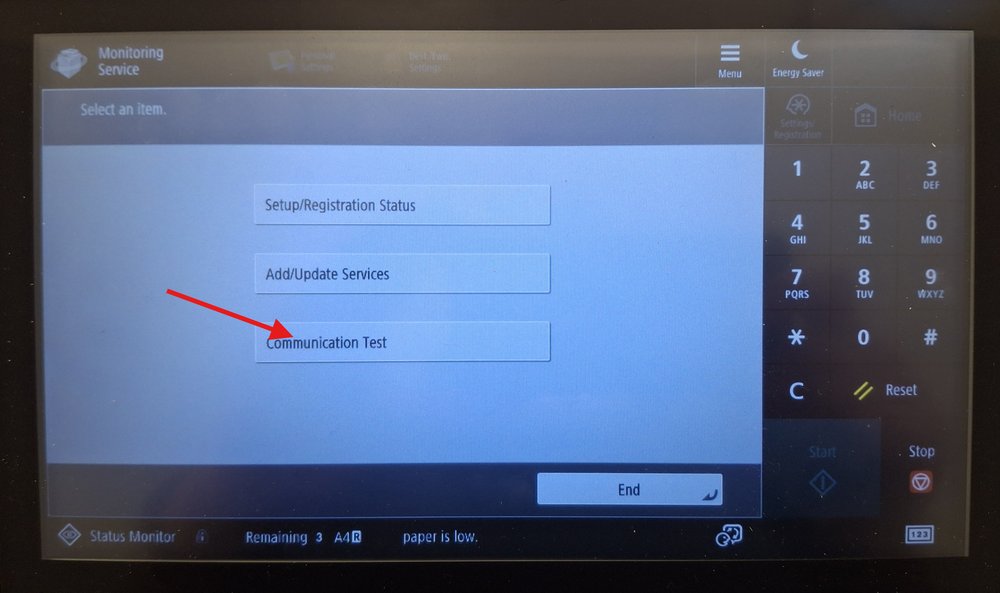
If the communication test failed, run it manually. Registration can succeed while the communication test fails. Press Close to return to the Monitoring Service menu, press Communication Test and check it now succeeds.
Pass on the device details. Once the device is registered and the communication test has passed, send the device serial number and customer name to Tech Support Helpdesk
Important: Don’t send the details until both the registration and the communication test have succeeded.
Was this article helpful?
That’s Great!
Thank you for your feedback
Sorry! We couldn't be helpful
Thank you for your feedback
Feedback sent
We appreciate your effort and will try to fix the article