Remote monitoring · Ricoh
How do I check SNMP is enabled on my Ricoh printer?
Open the printer’s web page using its IP address, sign in, and make sure SNMP is active with the community name public. This lets Vision monitor your meter readings and toner levels.
Before you start
You’ll need the following:
| Printer IP address | For example 192.168.0.227 |
| Administrator login | User name admin. The password is blank unless Vision or your IT team has set one. |
| A computer on the same network | Any web browser will do, such as Edge or Chrome. |
Open the printer web page
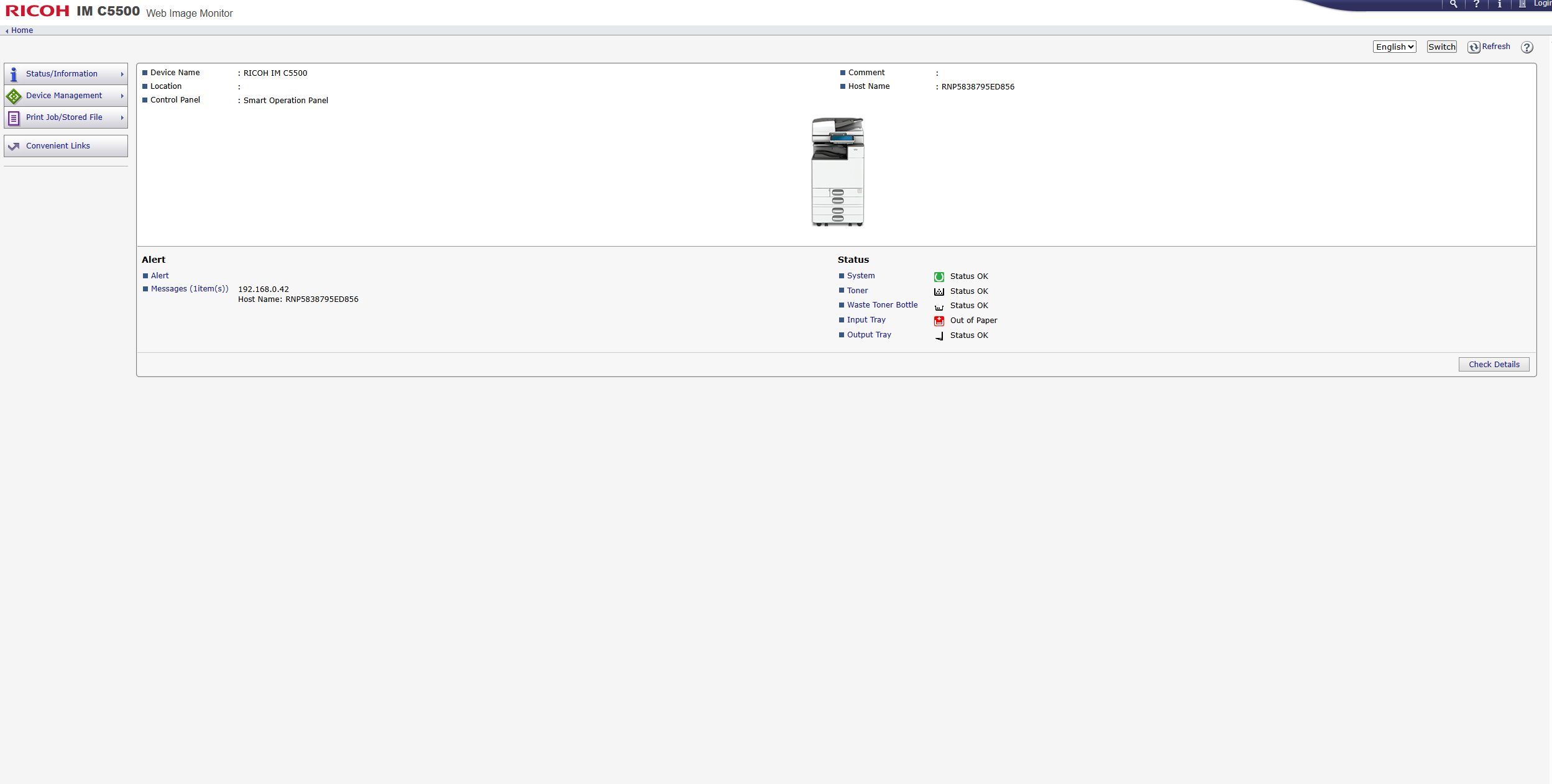
Enter the IP address in your browser. Type the printer’s IP address into the address bar, for example http://192.168.0.227, and press Enter. The Ricoh Web Image Monitor home page opens.
Note: The IP address is also shown on the home page under Messages, which is useful to confirm you’re on the right printer.
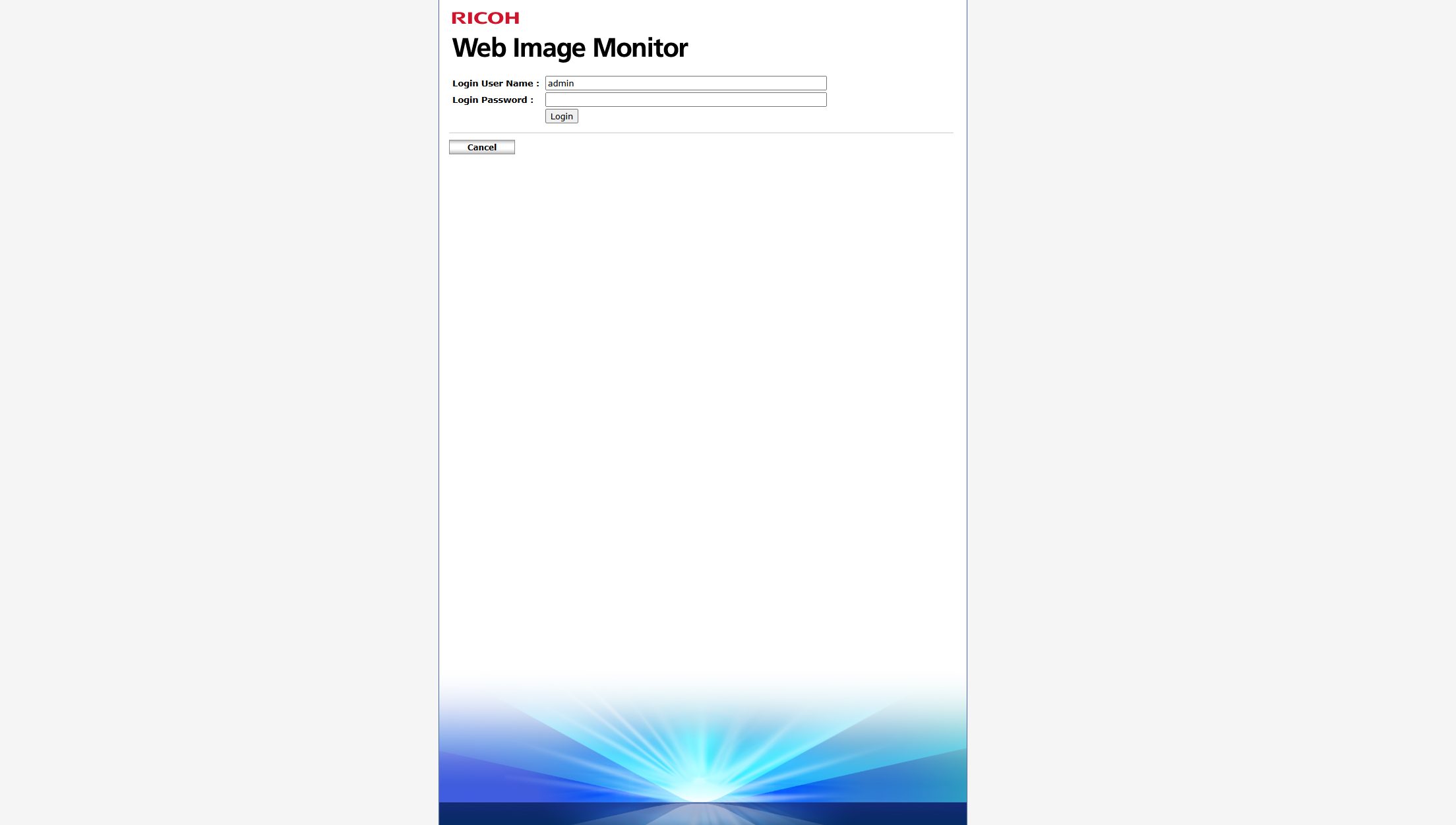
Sign in. Click Login at the top right of the page. Enter admin as the Login User Name, enter the password (leave it blank if none has been set) and click Login.
Check the SNMP settings
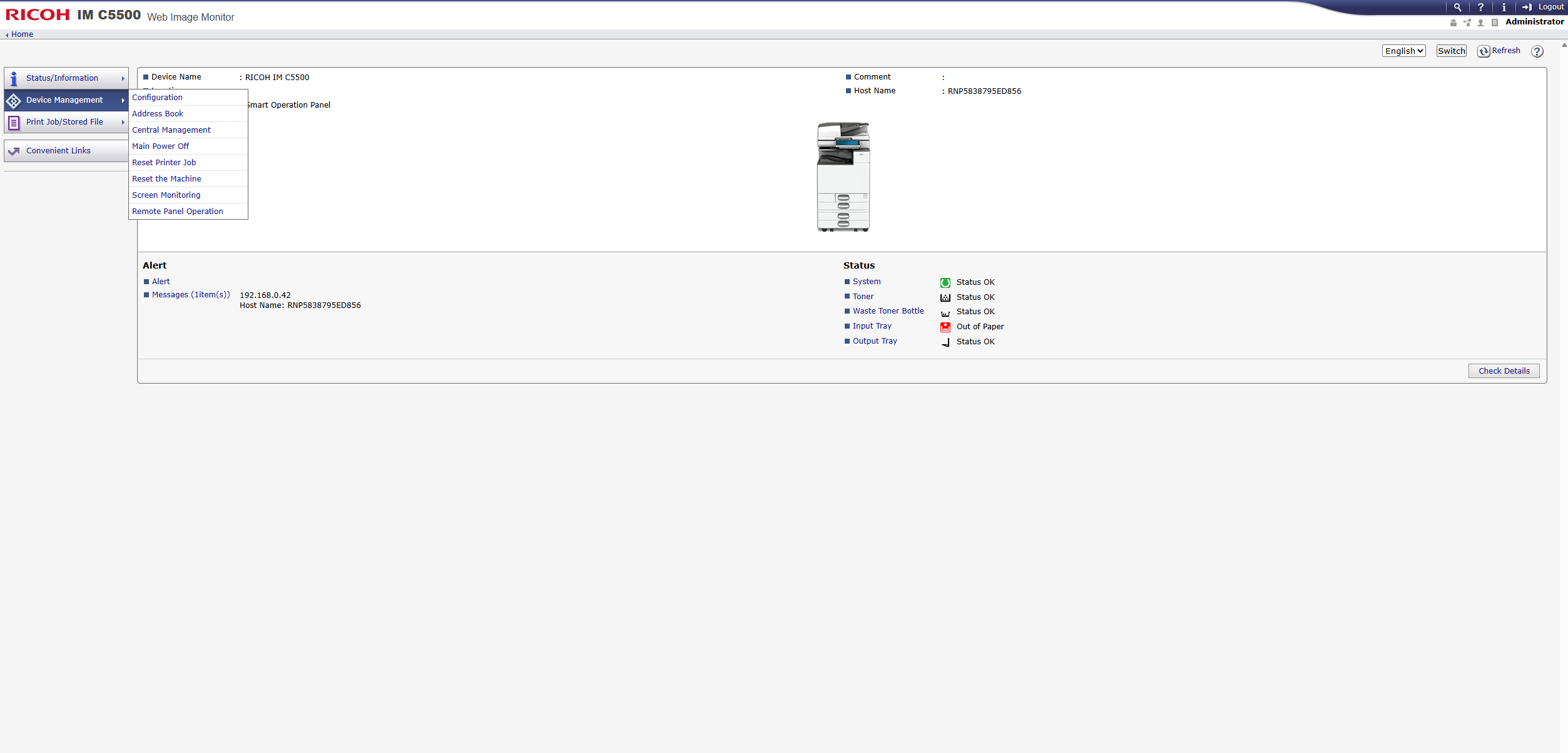
Open Configuration. In the left-hand menu, hover over Device Management and click Configuration.
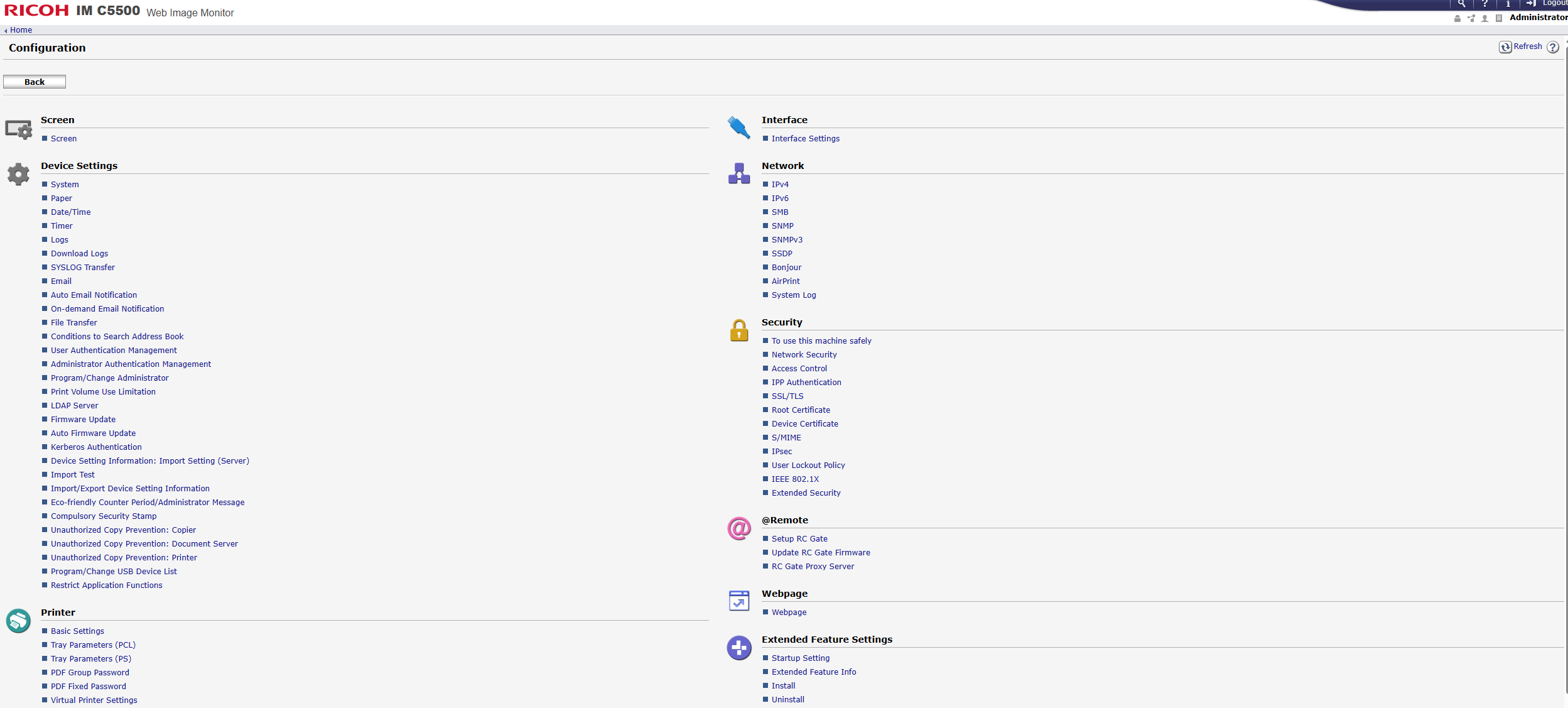
Open SNMP. Under the Network heading on the right, click SNMP.
Note: Click SNMP, not SNMPv3.
Make sure SNMP is enabled. Check the following settings:
| SNMP | Active |
| Protocol: IPv4 | Active |
| SNMPv1,v2 Function | Active |
| Community No. 1 – Community Name | public (all lower case) |
| Community No. 1 – Access Type | read-only |
| Community No. 1 – IPv4 | Active |
Important: The community name must be exactly public, in lower case with no spaces. If it’s different, monitoring won’t connect.
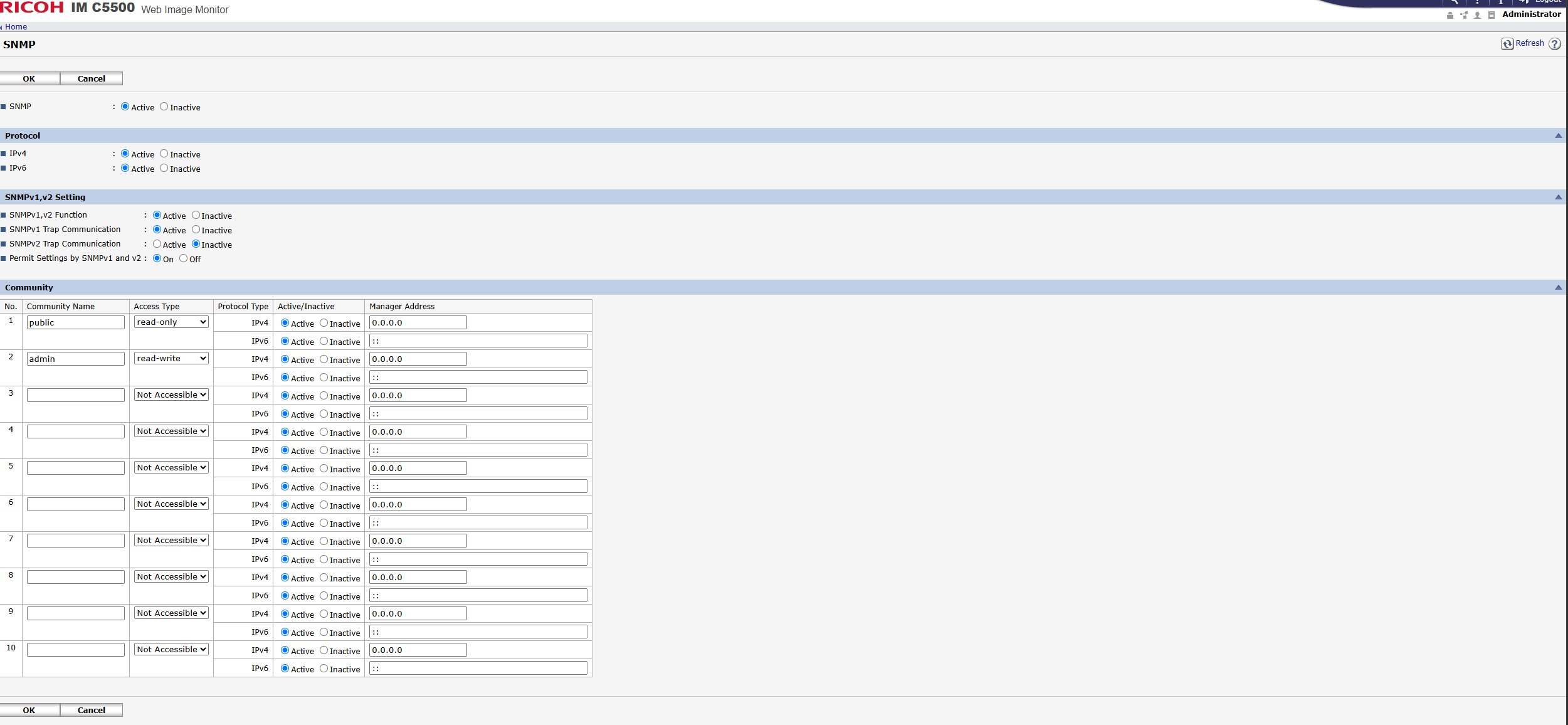
Save any changes. If you changed anything, click OK at the top or bottom of the page. If everything was already correct, click Cancel.
Log out. Click Logout at the top right of the page and close your browser.
Note: Once SNMP is enabled, let Vision Technical Support know so we can confirm the printer is reporting.
Was this article helpful?
That’s Great!
Thank you for your feedback
Sorry! We couldn't be helpful
Thank you for your feedback
Feedback sent
We appreciate your effort and will try to fix the article